Review Comments (0) Screenshots (3) Questions & Answers (0) Votes (1) Awards (10) Wiki  
-Please log in to rate
3 3/5 (1)
-DeskSoft
-2.1
- www.desksoft.com
-Shareware
-30$  Purchase
- 223 people
Download SmartCapture

548.88 KBDownloaded 115 times


Review

This review applies to version 2.0 The latest version of this software will soon be reviewed by our informers.

SmartCapture is a program that takes screen captures and saves the images on the user's hard disk drive as a PNG, BMP, JPG, GIF or TIF file. SmartCapture provides you with the possibility to adjust the quality settings according to your needs and preferences, a feature that indubitably enhances its functionality.

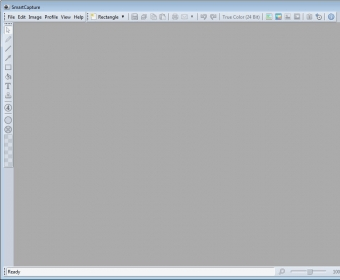
The first thing you need to do when taking a snapshot is to click on the New feature included in the File menu. You also have the possibility to hit the Ctrl+N key-shortcut, should you find this easier to use. Please note that in order to use this key combination SmartCapture needs to be the active application, as it won't work if you have another one that uses Ctrl+N for launching a certain feature. Right underneath the File menu you will find a button that allows you to select the type of snapshot you wish to take. By default you can capture a rectangle-shaped part of the screen but you can change this at any given time.

SmartCapture comes with three predefined profiles: rectangle, window and screen, but it provides you with the possibility to define your own. You are also granted the option of modifying the existing profile, with a simple click on the Edit Profile button. The window that will be displayed includes several tabs that allow you to customize the screentaking action according to your needs and preferences. For instance, you can select a different image source, adjust the brightness and contract, or take fixed size captures.

The "Image" menu also comes with a "Resize" feature that will pop up a small window letting users choose to maintain or not the image aspect ratio while procentualy resizing the image.
Advantages
  • user-friendly interface and highly configurable options
Disadvantages
  • none

Reviewed by: Daniel Mantilla

Reviewer rating: Editor's rating 4

Screenshots

Main Window Main Window Options Options Applying Brightness and Contrast Applying Brightness and...

Latest comments


There are no comments, be the first one!
Add new comment
Tag cloud
Download siClient

Email Address:

Password:

Register now »

Forgot password?

Copyright © 2009, Informer Technologies, Inc. About| Privacy and terms| Help| Feedback